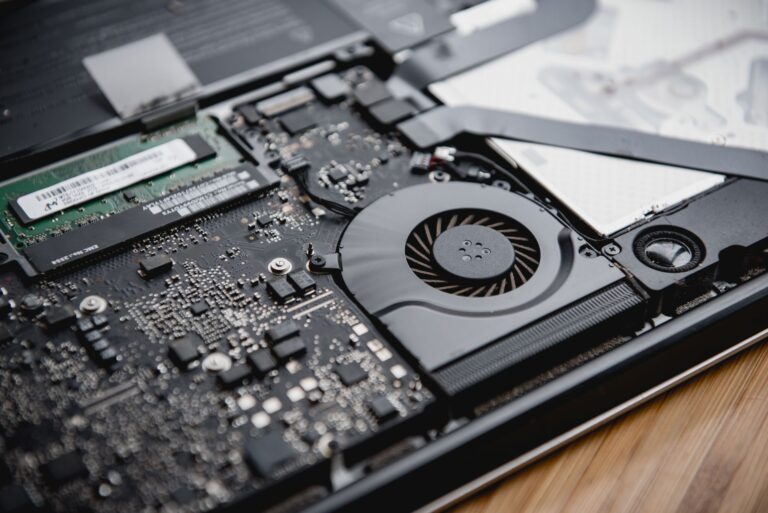
A valid serial number, stable battery, clear display, working ports, and documented ownership should all match the seller’s claim and hold up under load. Verify those points before discussing price, because a polished case can conceal a swollen battery, failed SSD, or school management profile.
The checks below help you compare older machines, private listings, and refurbished options without guessing which repair risks your budget can absorb.
Needs and Meetup Planning
Daily Work Sets the Minimum Specification
Your workload sets the minimum configuration before you inspect a listing. A $250 notebook may open email without trouble but still stall during Adobe Photoshop, a large spreadsheet, or a Zoom call with screen sharing because its CPU, RAM, or storage cannot keep up.
For documents, schoolwork, and web browsing, 8GB of RAM and SSD storage are sensible starting points. Remote work usually feels smoother with 16GB of RAM, especially when you keep 15 or more browser tabs, a video call, and office apps open at once.
CPU choice matters when your software needs sustained processing power. Intel Core and AMD Ryzen processors come in several generations, and an Intel Core i5 label alone does not tell you whether the chip is suitable for your tasks. Video editing, modern games, and 3D work may also need dedicated NVIDIA GeForce graphics.
Age changes the value calculation because software support can end before the laptop physically fails. Windows 11 compatibility excludes some older Intel Core systems, while Apple MacBook support depends on the installed macOS version and the chip inside. Hardware from around 2015 may still function, but you could face limited updates and fewer upgrade options.
A Proper Meetup Leaves Time for Evidence
A 20-minute inspection gives you enough time to verify the basics instead of trusting a powered-on desktop. Meet near a wall outlet, bring a USB device and headphones, and ask the seller to have the charger available before you arrive.
- Use the charger: Confirm that the included charger works through the normal charging port or USB-C port without cutting in and out.
- Choose an outlet: A wall outlet can expose loose plugs, charger faults, and battery-only shutdowns that a fully charged machine hides.
- Bring headphones: Test the audio jack separately from the built-in speakers, since either component can fail on its own.
- Carry a USB drive: Insert a basic USB device into each visible USB port and confirm that the operating system recognizes it.
- Allow 20 minutes: Booting, connecting to Wi-Fi, and opening programs reveal more than a quick power-on check.
Your used laptop buying checklist should account for seller type as well as hardware. A private seller may offer a lower price, but you usually accept all repair risk. A refurbished laptop may cost more, yet a reputable refurbisher can provide a return period, documented repairs, and a refurbished laptop warranty.
That tradeoff explains why is buying a refurbished laptop worth it depends on your tolerance for uncertainty. A clean private-sale laptop can be a good value after a full inspection, while a refurbished unit may suit you better when a return window matters more than the lowest upfront price.
That price comparison is meaningful only when the advertised specifications and the laptop in front of you agree.
The Listing and Machine Must Match
Once the meetup supplies power, time, and test accessories, compare the seller’s claims against the machine in front of you. Similar-looking laptops can contain different processors, RAM amounts, screen panels, and SSD capacities, and those differences directly affect what your money buys.
System Information Reveals the Real Configuration
A Dell Latitude with 8GB of RAM and a 128GB SSD does not hold the same value as the same chassis with 16GB and 512GB. Both listings may use the same family name, so you need the exact configuration rather than a broad model label.
Open Windows Settings, System Information, or Task Manager to view the CPU, installed RAM, SSD storage, and graphics hardware. On an Apple MacBook, select About This Mac and confirm the chip, memory, storage, and laptop screen size. Match the processor generation, not only a label such as Intel Core i5.
| Listing claim | Where you verify it | What must agree |
|---|---|---|
| Processor and generation | System Information or About This Mac | Exact Intel Core, AMD Ryzen, or Apple chip name |
| RAM and SSD size | Task Manager, Disk Management, or storage settings | Installed RAM and usable storage capacity |
| Screen and graphics | Display settings and device details | Resolution, refresh rate, touchscreen, and GPU |
| Model and serial number | Chassis label and firmware screen | Matching model code and serial number |
What to look for in a pre-owned laptop starts with this comparison because advertised upgrades can vary within one product line. Touchscreen panels, 120Hz displays, discrete graphics, and extra RAM may appear in only certain configurations. Direct inspection protects you from copied specification lists and polished stock photos.
Serial Numbers Tie the Parts to the Laptop
The serial number links the listing, chassis label, BIOS or UEFI screen, and any receipt. You should see the same identifier in each location. Removed labels, blurred photos, or a seller who will not open system details leave a gap in the laptop’s history.
Stop the transaction when the listed specifications and the machine’s system information disagree. A wrong storage size may be an honest mistake, but a different serial number or processor is a reason to walk away.
Serial number and theft checks cannot guarantee a laptop has no disputed history, but they can uncover obvious warning signs. Ask for the original purchase record when it is available, compare its serial number to the machine, and avoid devices with altered labels or vague ownership explanations.
Those identity checks answer part of what to check before buying a used laptop, but they cannot show mechanical wear. The next inspection focuses on damage that may not appear in system settings or a product listing.
Physical Condition Sets the Repair-Risk Baseline
Exact serial numbers and memory totals confirm what the laptop is, but they cannot show whether its hinges or display are close to failing. The outside of the machine gives you the first practical view of repair exposure.
The Chassis and Hinges Tell a Repair Story
Cracks near hinge mounts deserve more attention than a scratch on the lid. Open and close the display several times, watching for creaks, uneven gaps, wobble, or a screen that shifts after release. Weak hinges can pull on the display cable and damage the lid structure.
Look under the laptop for missing screws, stripped screw heads, corrosion, separated seams, and bent feet. Liquid damage can appear as green residue near ports, white crust around screws, or sticky keys. Those marks suggest moisture reached components you cannot see.
A dented corner is not automatically a deal breaker, but it changes what you should test next. Check that the laptop screen closes evenly, the bottom cover sits flat, and the charging port does not move in the chassis. Structural movement can turn a cosmetic issue into a cable or board repair.
The Screen and Controls Need Full Inspection
Set the display to white, black, red, green, and blue backgrounds. Dead pixels appear as fixed dots, while pressure marks look like cloudy bruises beneath the panel. Flickering, burn-in, discoloration, uneven brightness, and backlight bleed each point to a different display fault.
- Keyboard sweep: Press every key in a blank document, including Shift, Enter, arrows, function keys, and the space bar.
- Trackpad gestures: Test clicking, dragging, two-finger scrolling, and palm rejection while you type normally.
- Camera view: Open the webcam app and inspect image clarity, focus, and microphone input.
- Vent condition: Check cooling vents for lint mats, dents, odor, or a fan that rattles during startup.
- Port fit: Insert cables gently and watch for loose movement inside USB, HDMI, audio, and charging ports.
The keyboard and trackpad deserve the same attention as the display because replacement costs vary sharply by model. A few failed keys may be manageable on a laptop with a separate keyboard assembly, but they can be far more disruptive on a thin machine with an integrated top case.
This is how to inspect a second-hand laptop beyond surface scratches: test every control while watching for a pattern. One failed key may be isolated; several sticky keys beside corrosion suggest liquid exposure. Physical defects establish your repair-risk baseline, but powered testing reveals the faults hidden beneath a clean shell.
Hands-On Checks Reveal Hardware Problems
Hinges, ports, and screen colors reveal visible damage; a short workload exposes faults that appear only under power. Start with a full shutdown so you can observe the entire boot process instead of seeing a machine that was already awake.
Boot Behavior Exposes Heat and Storage Faults
Start from a full shutdown rather than waking the laptop from sleep. Long startup times, repeated error messages, loud fans at idle, freezes, or unexpected restarts can point to storage trouble, heat buildup, or unstable power.
Run a modest workload for 10 minutes. Open several browser tabs, a document, a video stream, and a video-call app. That small load exposes lag that a bare desktop hides, especially on machines with slow hard drives or limited RAM.
Check S.M.A.R.T. data for an SSD or hard drive. S.M.A.R.T. is the drive’s built-in health record. Warnings, read errors, or a clicking hard drive strongly suggest that storage failure may be near. Confirm that usable capacity matches the listing, too.
How to test a used laptop before buying comes down to reproducing the work you expect it to handle. Bring a document with you, sign in to a temporary Wi-Fi network where appropriate, and observe whether apps open normally. You do not need a demanding benchmark to spot freezing, severe lag, or unstable heat behavior.
Connections Need More Than a Visual Check
A port can look intact while failing electrically, so connect actual devices instead of relying on a visual check. Test the connections you need for your daily setup, especially USB-C charging, HDMI output, wireless accessories, or wired headphones.
- Brightness controls: Raise and lower brightness to expose flicker, dim zones, or broken function keys.
- Wireless links: Connect to Wi-Fi and Bluetooth, then confirm that both remain connected for several minutes.
- Audio path: Play sound through speakers, then headphones, to test speakers, microphone, and the headphone jack.
- Video output: Connect HDMI, DisplayPort, or USB-C video where practical, because a port can look intact but fail electrically.
- Battery report: Review battery health in the operating system and watch the charge percentage during normal use.
Ports and Wi-Fi connectivity affect everyday usefulness more than a minor lid scratch. You may not need HDMI today, but a failed charging port or unstable Wi-Fi can make the laptop difficult to use from day one. Test the features your own desk, classroom, or travel routine requires.
A rapidly falling charge, excess heat, battery-related shutdowns, or a swollen case should reduce the price you are willing to pay. Battery health declines with use, but swelling is a safety concern that requires replacement before regular use.
Once basic operation and safety are confirmed, verify that the device can be independently set up and used.
Do not press on a bulging trackpad or bottom cover. Stop charging the laptop and leave it behind when you see battery swelling, feel unusual heat, or notice a sharp chemical smell.
Ownership Locks and Management Controls Must Be Removed
A healthy SSD and battery do not matter if the machine becomes locked after your first reset. Account locks and organization management can survive a handoff, leaving you without full control of a laptop you paid for.
Former-Owner Locks Can Survive a Reset
A working desktop does not prove that you will keep access to the machine. Apple Activation Lock can tie an Apple MacBook to a prior Apple ID, while a BIOS or UEFI password can block startup changes, storage replacement, or operating-system recovery.
Ask the seller to sign out of personal accounts during the meetup. The laptop should reach a clean setup screen without requesting another person’s password. On Windows, check operating system activation under Settings before you pay.
Windows activation confirms that the current installation is activated, but it does not replace ownership checks. A valid digital license helps you avoid a separate activation purchase, while an account or firmware lock can still prevent you from controlling the machine fully.
School and Company Enrollment Changes Ownership
Enterprise enrollment can return after a reset because the device serial number is registered with an employer or school. Windows Autopilot, mobile-device-management prompts, organization-controlled settings, and restricted reset options signal that the laptop remains managed.
Run the reset process after the seller removes accounts and management. A machine with unclear ownership status is not a usable purchase, even if its webcam, ports, and SSD appear healthy. That restriction can turn your working computer into a locked slab after an update.
What to check before buying a used laptop includes the setup screen, not just the current desktop. You should be able to create your own account without an employer, school, former owner, or unfamiliar administrator appearing during setup. Leave any transaction unfinished when the seller cannot clear that restriction in person.
Only a device you can activate without another party’s help deserves a calculation of its remaining value.
Remaining Life and Final Price
Once no account or management lock remains, weigh repair exposure against the asking price. Your comparison only works when each laptop has the same CPU generation, RAM, SSD size, screen quality, and condition.
Matching Configurations Gives a Fair Price
The asking price means little until you compare laptops with the same processor generation, RAM, SSD storage, laptop screen quality, graphics chip, and cosmetic wear. A 16GB model with a 512GB SSD generally has more useful life than a similar shell with 8GB and 128GB.
| Finding | Effect on your final price |
|---|---|
| Strong battery and clean S.M.A.R.T. status | Supports the listed price when ownership checks are clear |
| Weak battery or missing charger | Subtract the cost of a replacement battery or suitable charger |
| Low storage capacity | Subtract an SSD upgrade only when the model permits replacement |
| Flickering screen or loose hinge | Walk away unless repair costs are documented and very low |
| No return period or service coverage | Leave more room for repair exposure in the price |
A $350 laptop that needs a $120 battery and a $90 SSD is no longer a $350 purchase. That example assumes both parts are replaceable and ignores labor, which is why you should also check whether the model allows access to its battery and storage.
Your final price should reflect the risk you are accepting, not only the advertised specifications. A refurbished laptop warranty or a short return period has value because it gives you time to catch a fault that did not appear during a 20-minute inspection.
The Final Choice Follows the Evidence
Your purchase has three clear paths: pay the listed price for a clean machine, negotiate from documented faults, or leave when locks and repair risk outweigh the savings. A small lid scratch may justify no discount at all, while a weak battery, missing charger, or low SSD capacity has a measurable replacement cost.
After you buy the laptop, remove prior data with a clean reset or operating-system reinstall, then install updates and set account security. Back up files left behind only with clear permission because old documents can contain private data or unwanted software.
Windows 11 compatibility belongs in this last decision because an otherwise functional laptop may not suit your software plans. Check the exact CPU, RAM, storage space, and firmware settings before relying on an upgrade path. Your purchase should meet today’s tasks without depending on unsupported workarounds.
Bottom Line
Condition, history, and verifiable proof determine whether a used laptop is worth buying. Verify the exact hardware, inspect the body, run real tasks, check battery and drive health, and clear every ownership lock before payment. You can negotiate over a minor scratch, but a swollen battery, failing drive, or managed account is a reason to leave.
A careful used laptop buying checklist protects you from false savings. The best deal is the machine whose configuration, battery health, ports, operating system activation, and ownership status all match the price you are actually paying.
FAQ
What specs should I look for when buying a used laptop?
Look for an Intel Core or AMD Ryzen CPU that fits your workload, at least 8GB of RAM for basic browsing and documents, and SSD storage rather than a slow hard drive. You may prefer 16GB of RAM for video calls, heavier multitasking, creative work, or large spreadsheets. Confirm the exact processor generation, storage capacity, graphics hardware, and laptop screen resolution.
How can I check a used laptop’s battery health before purchasing it?
Review the battery health or capacity information in Windows or macOS, then watch the charge percentage during 10 minutes of normal use. Your battery should not become excessively hot, cause shutdowns, drain sharply, or push the case outward. A battery report can show wear, but actual charging and discharge behavior reveal problems the report may not explain.
What physical damage and hardware problems should I test for?
Inspect for hinge cracks, corrosion, missing screws, separated seams, sticky keys, loose ports, and screen damage. Test every keyboard key, trackpad gesture, speaker, microphone, webcam, charging port, USB port, Wi-Fi connection, and Bluetooth connection. You should also listen for fan rattles, hard-drive clicking, and repeated startup errors.
How do I know whether a used laptop is stolen, locked, or managed by a company or school?
Match the serial number on the chassis, BIOS or UEFI screen, listing, and any receipt. Ask the seller to remove personal accounts and management profiles, then confirm that setup does not request another person’s password or an organization login. Apple Activation Lock, Windows Autopilot enrollment, BIOS passwords, and employer-controlled settings are reasons to walk away.
How old is too old for a used laptop?
A laptop from around 2015 can still handle light work, but age becomes a problem when it cannot run supported software, has limited battery life, or lacks practical upgrade options. Processor generation matters more than the product family name. You should check Windows 11 compatibility or the supported macOS version before treating an older machine as a long-term purchase.
Is a refurbished laptop safer than buying directly from an individual seller?
A refurbished laptop can be safer when the seller provides a return period, documented work, and a refurbished laptop warranty. A private sale can still be worthwhile when you can inspect the machine fully, verify ownership, and accept the repair risk. Your choice depends on whether the lower price offsets the loss of return protection.